Software Buyer Brief
Project Management Software Buying Checklist For Small Teams
Short answer: a small team should buy project management software only after it defines the real work it needs to track, who owns each step, which clients or contractors need access, what files and comments will live inside the system, which notifications matter, what integrations are required, how automation will be controlled, how MFA and permissions work, what reports leadership needs, how old work will migrate, how pricing changes, and how the team can export its data later.
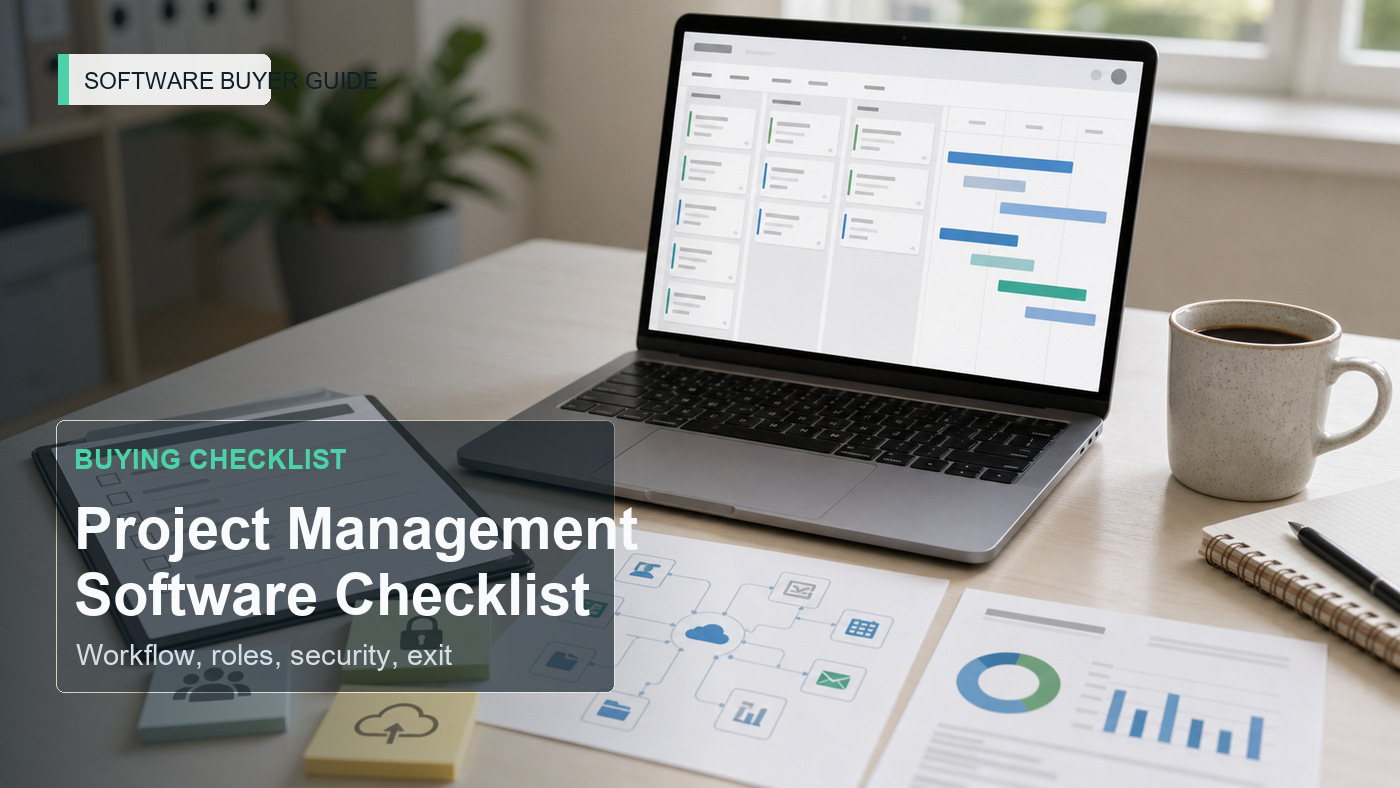
Project management software does not fail because the task board is ugly. It fails because the team never agreed what the board is supposed to control.
A five-person agency, a construction office, a small software team, and a finance operations team can all say they need a project management tool. They do not need the same system. One needs client approvals. One needs job-site dependencies. One needs sprint planning. One needs recurring month-end work with evidence. The wrong tool can make work look organized while hiding the same missed handoffs in a cleaner dashboard.
This checklist is written for small teams before they book vendor demos. It is not a ranking list. It is a buying conversation map.
Start With The Work That Breaks Today
Before comparing software, write down three recent failures. Not generic frustrations. Real moments.
- A client approval sat in email for six days.
- A designer started work before the requirements changed.
- A manager asked for a status update that already existed somewhere else.
- A contractor saw files they did not need.
- A recurring task was done, but no one kept evidence.
- A project looked green until the last week.
Those failures are the buying brief. The demo should show how the tool prevents or exposes them. A beautiful timeline is not useful if it does not change the handoff that keeps slipping.
1. Define The Work Types Before You Define Features
Small teams often buy one tool to hold several kinds of work. That is fine if the tool can separate them cleanly. It is a problem if every team has to force different work into one generic task template.
List the work types the software must support:
- Client delivery projects
- Internal operations work
- Recurring checklists
- Product or engineering work
- Marketing campaigns
- Bug or issue tracking
- Procurement or approval workflows
- Contractor and vendor work
For each one, name the start trigger, finish condition, owner, reviewer, and evidence needed. This keeps the demo focused on how work moves, not how many views the product has.
2. Decide Whether You Need Tasks, Projects, Tickets, Or Records
A task tool is good for simple ownership. A project tool is better when work has phases, dependencies, calendars, files, and reporting. A ticket tool is better when incoming requests need intake, routing, response targets, and history. A database-style work platform can be useful when the team tracks structured records such as clients, assets, campaigns, locations, or vendors.
Do not let a vendor rename everything as a “project” if your team actually needs request intake or structured records. Ask the vendor to build one real example during the demo: a new client onboarding request, a website launch, a monthly close checklist, or a product bug triage flow.
3. Map Roles Before Permissions
Permissions are not just an IT setting. They decide whether the tool can be trusted for client work, contractor work, HR-sensitive work, finance work, or product planning.
Write the roles first:
- Workspace owner
- Project manager
- Task assignee
- Approver
- Viewer
- Client guest
- Contractor
- Executive reader
- Billing or finance user
Then ask what each role can see, edit, invite, export, delete, automate, and report on. A small team may not need complex enterprise controls, but it does need to know whether a guest can see only one project or the whole workspace.
4. Treat Guest Access As A Risk Item
Guest access is one of the easiest ways a project management tool becomes messy. It is also one of the most useful features when managed well.
Ask:
- Can guests be limited to one project, folder, board, or task?
- Can guests upload files?
- Can guests see comments, internal notes, or custom fields?
- Can guest access expire?
- Can the team audit guest activity?
- Are guests free, discounted, or billed like full users?
If clients, vendors, or contractors will use the tool, guest controls should be shown live in the demo. A screenshot is not enough.
5. Decide Where Files And Decisions Will Live
Project tools often become file drawers, comment threads, approval logs, and meeting-note archives. That may be useful. It may also duplicate Google Drive, Microsoft 365, Slack, email, and the CRM.
Before buying, decide what belongs in the project management tool and what should only be linked from another system. For example, a final contract may belong in the document system, while the task should link to it. A design proof may belong in a creative review tool, while the project task stores the approval status.
The buying question is not “does it store files?” The question is “where will the source of truth be after six months?”
6. Test Notifications With A Bad Week, Not A Perfect Week
Most demos make notifications look helpful. Real teams often turn them off because every comment, mention, due-date change, and automation creates noise.
Ask the vendor to show how notifications work when:
- A task is reassigned.
- A due date moves.
- A client comments on a task.
- A dependency blocks work.
- A recurring task is overdue.
- A manager needs a weekly digest instead of real-time alerts.
The right tool helps people see the next action without training everyone to ignore alerts.
7. Integrations Should Reduce Double Entry
Integrations can be useful, but they can also create quiet process debt. A calendar integration that floods calendars, a chat integration that creates duplicate status threads, or a CRM integration that syncs the wrong fields can make the team trust the system less.
Identify the required integrations before the demo:
- Email and calendar
- Slack or Microsoft Teams
- Google Drive or Microsoft 365
- CRM
- Help desk
- Git or issue tracking
- Accounting, billing, or time tracking
- Automation platform
For each integration, ask which direction data syncs, who can configure it, whether field mapping is included, how errors are surfaced, and whether the integration is available on the plan being quoted.
8. Automation Needs An Owner
Automation can save time when it reflects a stable process. It can also create silent work when no one owns the rule. A task auto-created from a form is useful only if someone checks the intake quality. A reminder is useful only if it reaches the right person. A status change is useful only if it means the same thing every time.
Before approving automation-heavy software, ask:
- Who can create automations?
- Who reviews existing automations?
- Can automations be tested before going live?
- Are automation runs metered or plan-limited?
- Is there an audit log for automation changes?
- What happens when the employee who built the automation leaves?
If the product includes AI summaries, AI task generation, or AI search, ask what data the AI feature can access, whether prompts or outputs are retained, whether customer data is used for model training, and whether AI features can be disabled by workspace or role.
9. Security Review Should Happen Before The Team Imports Work
Project management tools often hold client names, internal notes, files, deadlines, budgets, vendor details, product plans, and occasionally sensitive personal information. FTC guidance for businesses emphasizes knowing what personal information is kept, keeping only what is needed, protecting what is kept, disposing of what is no longer needed, and planning ahead for incidents. That logic applies before a team moves live work into a new SaaS tool.
Ask the vendor about:
- MFA support and enforcement
- SSO availability and plan level
- Role-based access controls
- Guest and contractor controls
- Audit logs
- Data export
- Data deletion
- Subprocessors
- Security documentation
- Incident notice process
CISA’s software-buyer guidance is useful here because it pushes customers to ask security questions during procurement, not after a tool is already embedded in the business.
10. Reporting Should Match Management Decisions
A dashboard is only useful if it changes a decision. Before buying, write down the reports the team actually needs.
- Projects at risk this week
- Work blocked by client approval
- Overdue tasks by owner
- Capacity by team or role
- Recurring work completion
- Budget or time variance
- Work waiting on vendors
- Projects missing required evidence
Ask whether these reports can be built without exporting to a spreadsheet. Also ask who can see reports across projects. A manager may need portfolio visibility, while a client should see only the work relevant to them.
11. Migration Is Work, Even For Small Teams
A project management tool feels easy to start because the first board can be created in minutes. Migration is different. The team has old tasks, files, projects, statuses, labels, client notes, and comments scattered across several places.
Ask what will migrate and what will not:
- Open projects
- Closed projects
- Task comments
- File links
- Custom fields
- Tags and labels
- Assignees
- Due dates
- Recurring tasks
- Time entries or estimates
If the vendor says migration is easy, ask for the import template before signing. A clean template exposes the real work.
12. Pricing Should Be Modeled Around Real Users
Project management pricing can change when the team adds guests, contractors, automations, storage, reporting, SSO, audit logs, time tracking, forms, or premium integrations. A small team should not compare only the first seat price.
Build a quote using real usage:
- Full internal users
- Part-time users
- Executives who only read dashboards
- Client guests
- Contractors
- Automations per month
- Storage needs
- Required integrations
- Security features
- Monthly versus annual billing
Ask what happens at renewal if the team crosses a user tier, needs SSO, or wants audit logs after the rollout.
Project Management Software Demo Map
| Buying Area | What To Show In The Demo | Approval Question |
|---|---|---|
| Workflow | One real project from intake to approval | Does this match how the team actually works? |
| Roles | Owner, assignee, approver, guest, viewer | Can each person see and change only what they should? |
| Files | Linked files, uploaded files, approval evidence | Where is the source of truth? |
| Notifications | Digest, mentions, due-date changes, blocked work | Will alerts help or create noise? |
| Integrations | Email, calendar, chat, drive, CRM, help desk | Which data syncs, and who owns errors? |
| Automation | Rules, limits, test mode, audit trail | Who owns automation after rollout? |
| Security | MFA, SSO, guests, logs, export, deletion | Can the team protect client and business data? |
| Reporting | At-risk work, overdue tasks, capacity, approvals | Does the report support real management decisions? |
| Migration | Import template, fields, comments, files, users | How much cleanup happens before go-live? |
| Pricing | Users, guests, storage, automation, security, renewal | What does the tool cost after the team actually uses it? |
Message To Send Before A Demo
Please prepare the project management software demo around one real workflow: intake, assignment, approvals, comments, files, guest access, notifications, integrations, automation, reporting, and export. Also show the permission model, MFA or SSO options, audit logs, migration template, plan limits, renewal terms, and what happens if we need to leave the platform later.
FAQ
What should small teams check before buying project management software?
They should check workflow fit, roles, guest access, file handling, comments, notifications, integrations, automation ownership, MFA and permissions, reporting needs, migration work, pricing, renewal terms, and export options.
Is project management software worth it for a small team?
It can be worth it when the tool reduces missed handoffs, unclear ownership, scattered files, status meetings, and approval delays. It is not worth it if the team only recreates the same confusion in a prettier task board.
Should a small team choose the easiest project management tool?
Ease matters, but the easiest tool is not always the safest choice. The team should still check guest controls, permissions, reporting, migration, integrations, automation limits, and data export before moving live work into it.
What project management software features are easy to underestimate?
Small teams often underestimate guest permissions, notification controls, recurring task rules, file-source decisions, dashboard visibility, automation ownership, import cleanup, audit logs, and exit/export terms.
Sources Checked
- CISA: Secure By Demand Guide
- FTC: Protecting Personal Information, A Guide For Business
- CISA: Multifactor Authentication
- NIST: Privacy Framework
- FTC: Data Security Business Guidance
The Buying Rule
Approve project management software only when the demo proves how the team will run real work inside it. The right tool should reduce handoff confusion, protect the right information, make status visible, keep alerts useful, support the integrations that matter, and let the business leave with its data if the tool stops fitting.